测试目标是每次提交代码后 Gitlab 会自动执行 Pipeline 运行单元测试和构建,虽然通过调用外部的 Jenkins 也可以实现,但 SCM 使用的是 Gitlab,通过 Gitlab 自己的 CI 运行会更适合些。
安装 Gitlab Runner#
我是在 Kubernetes 中手动创建 Pod 作为 Gitlab Runner,参考的是「Linux 安装 Runner」,如果你需要在 Kubernetes 运行 Runner 长期使用,建议参考官方文档的「Kubernetes 安装 Runner」:
常用系统如 Ubuntu、Centos 等参考「Linux 安装 Runner」进行安装,Alpine 等其它系统参考「Linux 安装 Runner(手动)」
创建 Pod 当作服务器使用
使用 Ubuntu 作为 Runner
apiVersion: v1
kind: Pod
metadata:
  name: gitlab-runner-ubuntu
spec:
  containers:
    - name: ubuntu
      image: ubuntu:22.04
      command: ["tail"]
      args: ["-f", "/dev/null"]
通过源方式安装 Runner(推荐)
$ apt-get update && apt-get install curl wget

# 添加源
$ curl -L "https://packages.gitlab.com/install/repositories/runner/gitlab-runner/script.deb.sh" | bash

# 安装 Runner
$ apt-get install gitlab-runner
手动安装 Runner
$ curl -L --output /usr/local/bin/gitlab-runner https://gitlab-runner-downloads.s3.amazonaws.com/latest/binaries/gitlab-runner-linux-arm64
$ chmod +x /usr/local/bin/gitlab-runner
$ useradd --comment 'GitLab Runner' --create-home gitlab-runner --shell /bin/bash
$ gitlab-runner install --user=gitlab-runner --working-directory=/home/gitlab-runner
$ gitlab-runner start
自定义设置
我需要这个 Runner 构建 Golang 程序,所以需要先安装软件及配置
$ apt-get update

# 如果 go.dev 无法访问可以从 https://studygolang.com/dl/golang/go1.21.6.linux-arm64.tar.gz 下载
$ wget https://go.dev/dl/go1.21.6.linux-arm64.tar.gz
$ tar -xvf go1.21.6.linux-arm64.tar.gz
$ mv go /usr/local

# 需要切换到 gitlab-runner 用户,这是 Gitlab CI 使用的用户,否则做的修改在 CI 中的 Shell 是找不到的
$ su gitlab-runner
$ tee ~/.profile <<'EOF'
export GOROOT=/usr/local/go
export GOPATH=$HOME/go
export PATH=$GOPATH/bin:$GOROOT/bin:$PATH
EOF
$ source ~/.profile
安装 Redis 服务
$ apt install redis
$ nohup /usr/bin/redis-server /etc/redis/redis.conf --supervised systemd --daemonize no &
没有 systemctl 命令,所以直接启动Redis服务
注册 Runner 到 Gitlab#
首先到 Gitlab 仓库页面 “Settings” - “CI/CD” - “Runners”
在 “Set up a specific runner manually” 可以找到 Host 地址及 registration token
然后回到 Runner 机器(注意⚠️以下命令是在 root 用户下执行的,非 gitlab-runner 用户)
$ gitlab-runner register --url https://<your-gitlab-host>/ --registration-token <your-registration-token>其它都默认即可,在 “Enter an executor” 时输入 shell
刷新 Gitlab 页面,可以看到 Runner 已注册
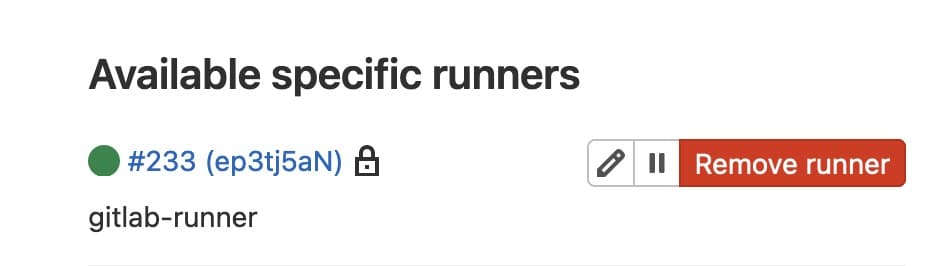
编写 Gitlab Pipeline#
在 Git 项目根目录创建文件 .gitlab-ci.yml,内容如下:
stages:
  - build
  - test

build:
  stage: build
  script:
    - go build -o myapp

test:
  stage: test
  script:
    - go test ./...
提交即可触发 Gitlab CI 执行
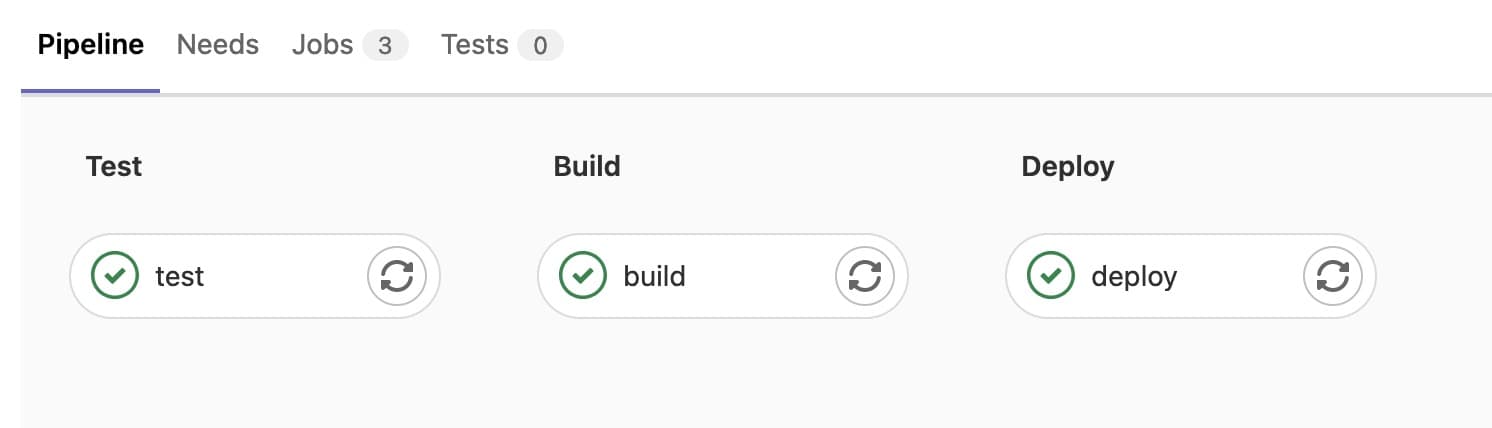
在 Commit 页面也可以看到 Pipeline 执行成功的绿色对号

补充
gitlab-runner 运行时会自动加载 ~/.profile 如果是自定义的环境变量在 ~/.bashrc 需要在 Pipeline 文件的顶部添加以下内容,全局生效
before_script:
  - test -f ~/.bashrc && source ~/.bashrc
条件选择,如果分支为 develop 则执行部署步骤,否则跳过。
deploy:
  stage: deploy
  script:
    - echo "Deploying"
    - echo "$CI_COMMIT_REF_NAME"
  rules:
    - if: '$CI_COMMIT_REF_NAME == "develop"'
      when: always
    - when: never
补充: Specific runner 可以注册到多个 Gitlab 仓库#
Runner 与 Gitlab 仓库是一对多的关系,可以在机器上执行多次 gitlab-runner register ... 指令将 Gitlab Runner 注册到多个仓库
查看 /etc/gitlab-runner/config.toml 配置文件,看到有两个 Runner 配置
concurrent = 1
check_interval = 0
shutdown_timeout = 0

[session_server]
  session_timeout = 1800

[[runners]]
  name = "gitlab-runner"
  url = "https://<your-gitlab-host>/"
  id = 233
  token = "<token-1>"
  token_obtained_at = 2024-01-18T09:07:55Z
  token_expires_at = 0001-01-01T00:00:00Z
  executor = "shell"

[[runners]]
  name = "gitlab-runner"
  url = "https://<your-gitlab-host>/"
  id = 234
  token = "<token-2>"
  token_obtained_at = 2024-01-19T08:24:25Z
  token_expires_at = 0001-01-01T00:00:00Z
  executor = "shell"
  [runners.cache]
    MaxUploadedArchiveSize = 0
如果手动修改配置文件,需要执行 gitlab-runner restart 重新加载
总结#
设置环境变量时,需要先在机器上切换为 gitlab-runner 用户,将自定义的环境变量放在 ~/.profile 中,CI 在执行时可以自动加载。